

How To Use The WRLD Help Desk Button
Skip the screenshots and the facetime calls. The BUTTON made by our partner Tier2 is here to help - we’ll spare you the technical details, diagnostics and screengrabs it automatically provides to help us better help you and get straight to it.Don't have it installed?
Follow our quick install guide for Windows or macOS to get the Help Button on your device.
Where Can I Find It?
Look for our logo with HELP:
- Your Taskbar! Look for our logo with ‘HELP’ and simply click it
- Your Desktop Icon (Mixed in with other icons like the Recycle Bin)
- By Pressing F1 (or the function key chosen during install)
- By right-clicking your system tray
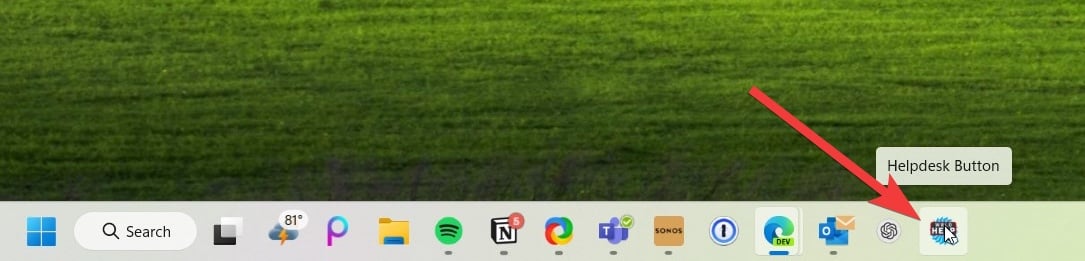
The Help Button pinned to the Windows taskbar
How to Submit a Diagnostic Helpdesk Ticket
First time running? You’ll be prompted to enter your contact info (name and work email). This only happens once per user.

Diagnostics run automatically when you press the Help Button
Steps
- Click the WRLD Help Button in your taskbar, desktop, or Applications folder
- Describe your issue to the best of your ability, and let us know how urgent it is and how many people it affects
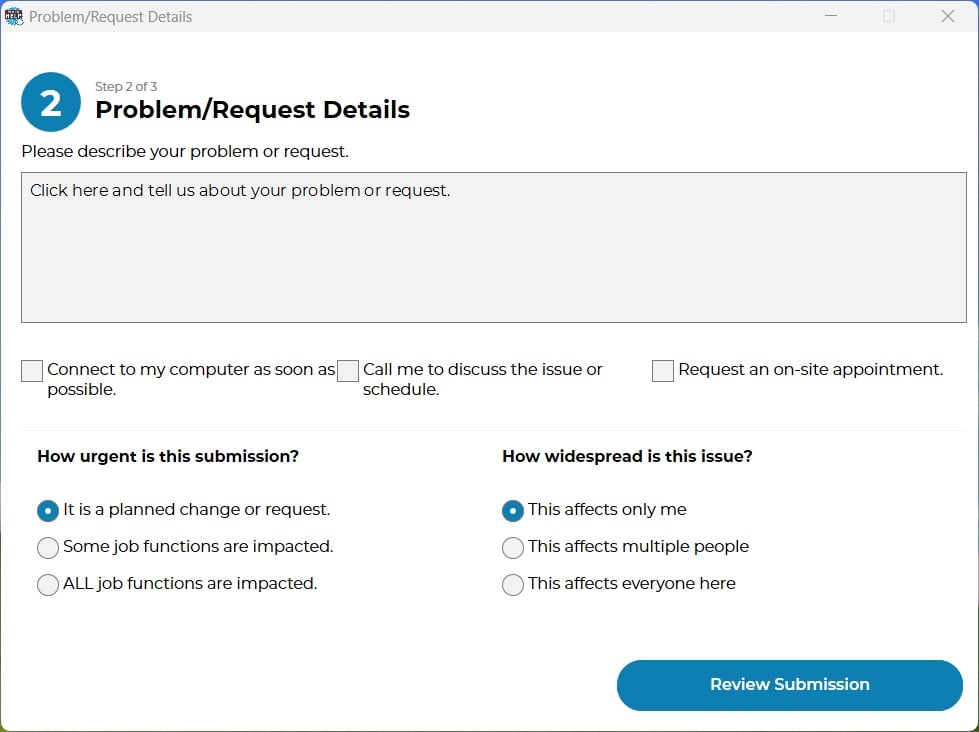
Step 2 of 3: describe your problem or request
- Review AI suggestions - You may be shown solutions to try first. Click “None of these, Continue” if they don’t help.
- Confirm consent - Acknowledge that you’re not sending protected/confidential information, then click Submit
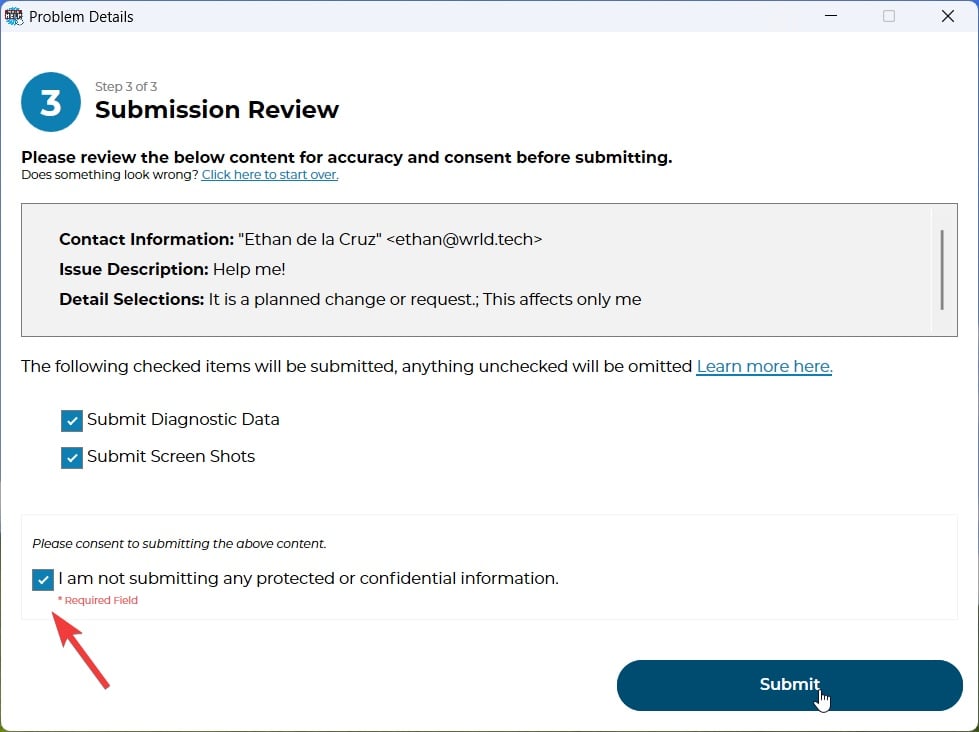
Step 3 of 3: review, confirm consent, and submit
- Receive your ticket number - You’ll get a confirmation with your ticket number so you can track progress
Why Use the Help Button?
Automatic Diagnostics
Captures your last 10 clicks and system health automatically
Skip Screenshots
No need to take and attach screenshots manually
Faster Resolution
Get help quicker with all the info we need upfront
Track Progress
Receive a ticket number to track your request
Not on a Company Device?
If you’re on your mobile or don’t see the Help Button, you can still submit tickets:WRLD client portal
Sign in to the secure client portal to submit tickets
Install the Help Button
Download it for Windows or macOS in a few minutes