> ## Documentation Index
> Fetch the complete documentation index at: https://help.wrld.tech/llms.txt
> Use this file to discover all available pages before exploring further.
# WRLD Help Button
> 1-Click-and-Done Problem Resolution - Best Method for Getting Support
## How To Use The WRLD Help Desk Button
**Skip the screenshots and the facetime calls.** The BUTTON made by our partner Tier2 is here to help - we'll spare you the technical details, diagnostics and screengrabs it automatically provides to help us better help you and get straight to it.
Follow our quick install guide to get the Help Button on your device.
## Where Can I Find It?
Look for our logo with **HELP** in one of these locations:
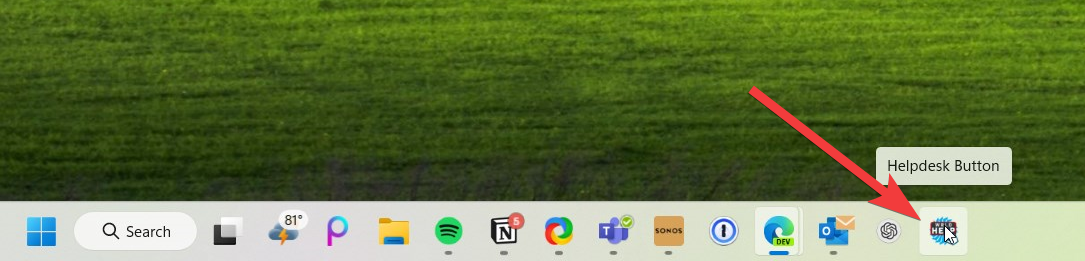
* **Your Taskbar!** Look for our logo with 'HELP' and simply click it
* **Your Desktop Icon** (Mixed in with other icons like the Trash Bin)
* **By Pressing F1** (if configured)
* **By right-clicking** your system tray


## How to Submit a Diagnostic Helpdesk Ticket
**First time running?** You'll be prompted to enter your contact info (email/phone). This only happens once per user.
### Watch the Walkthrough
### Steps
1. **Click the WRLD Help Button** in your taskbar or desktop
2. **Describe your issue** in the ticket form to the best of your ability
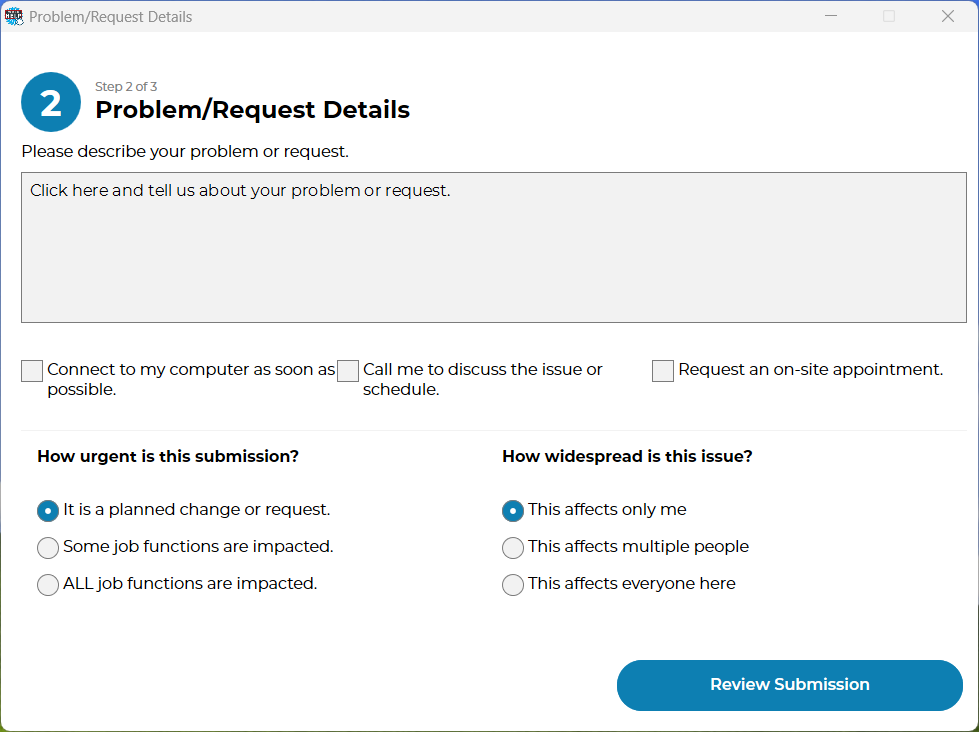
3. **Review AI suggestions** - You may be shown solutions to try first. Click "None of these, Continue" if they don't help.
4. **Confirm consent** - Acknowledge that you're not sending protected/confidential information
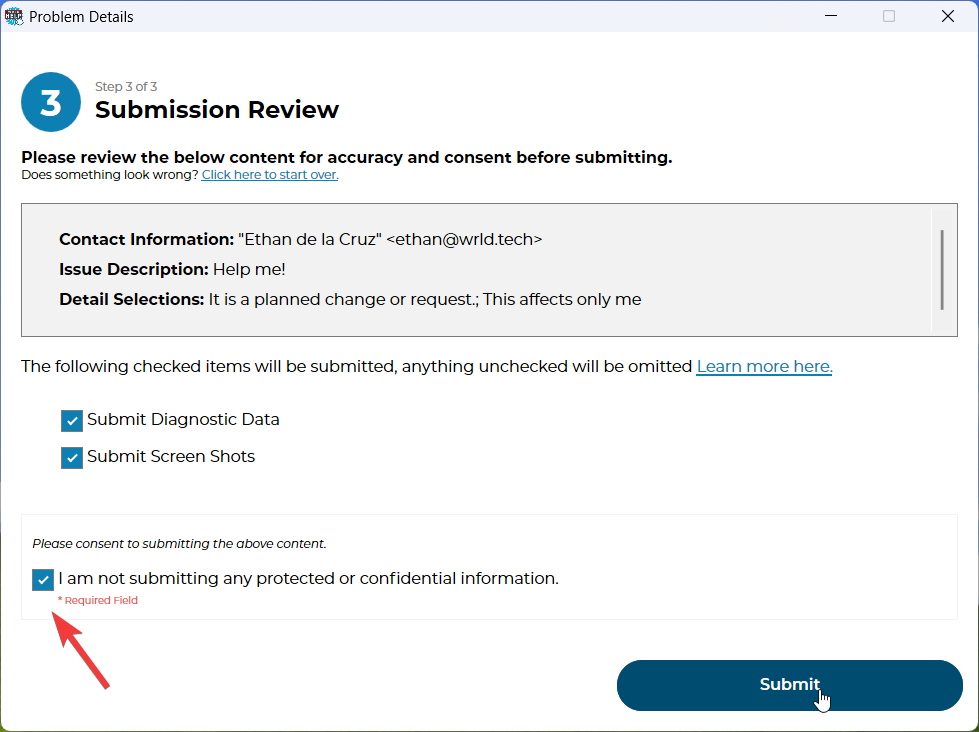
5. **Submit and receive your ticket number**

## Why Use the Help Button?
Captures your last 10 clicks and system health automatically
No need to take and attach screenshots manually
Get help quicker with all the info we need upfront
Receive a ticket number to track your request
## Not on a Company Device?
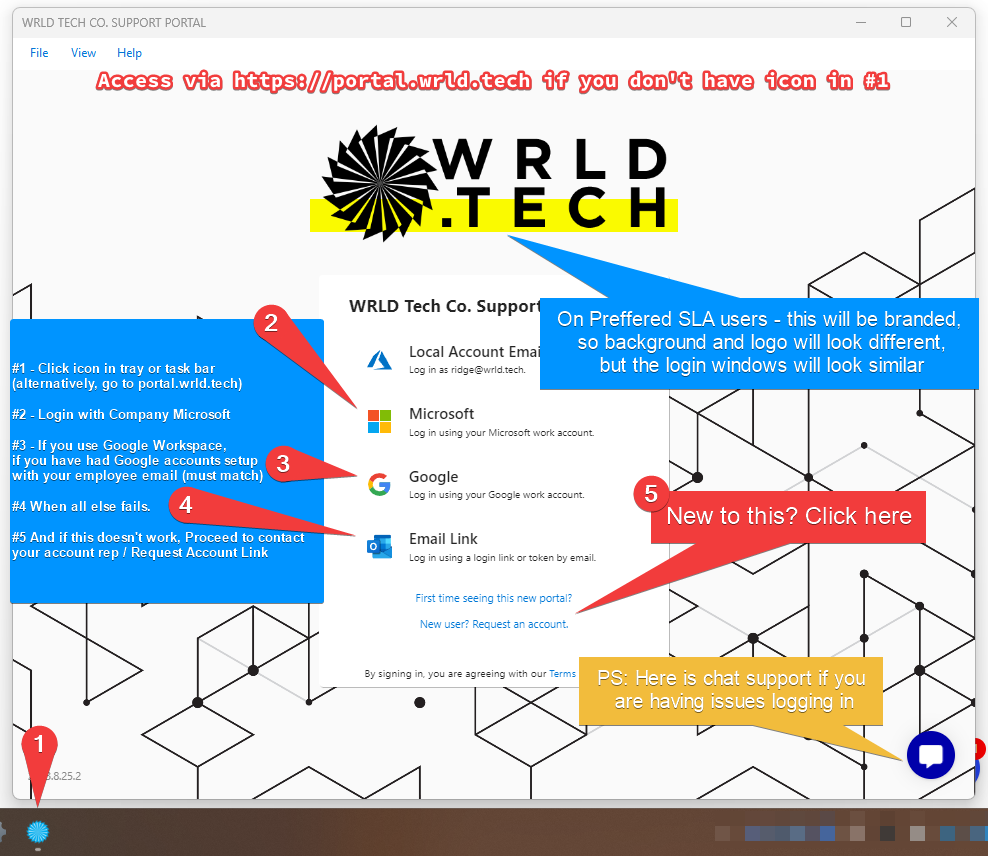
If you're on your mobile or don't see the Help Button, you can still submit tickets:
Log in at portal.wrld.tech to submit tickets
Right-click the portal icon in your system tray
See more at [help.wrld.tech](https://help.wrld.tech)