> ## Documentation Index
> Fetch the complete documentation index at: https://help.wrld.tech/llms.txt
> Use this file to discover all available pages before exploring further.
# Install the WRLD Help Button
> Self-install walkthrough for the WRLD Help Desk Button
## Download & Install
The WRLD Help Button makes submitting support tickets fast and easy. Follow these steps to install it on your Windows device.
Download the MSI installer file:
WRLD Help Button - Self Install-1.17.40.msi
The file will download to your default save folder.
Double-click the downloaded `.msi` file to run it.
You may need to right-click and select "Run as Administrator" or approve security alerts.
When prompted, select which function key to assign to the Help Button.
**We recommend selecting F1** for quick access.
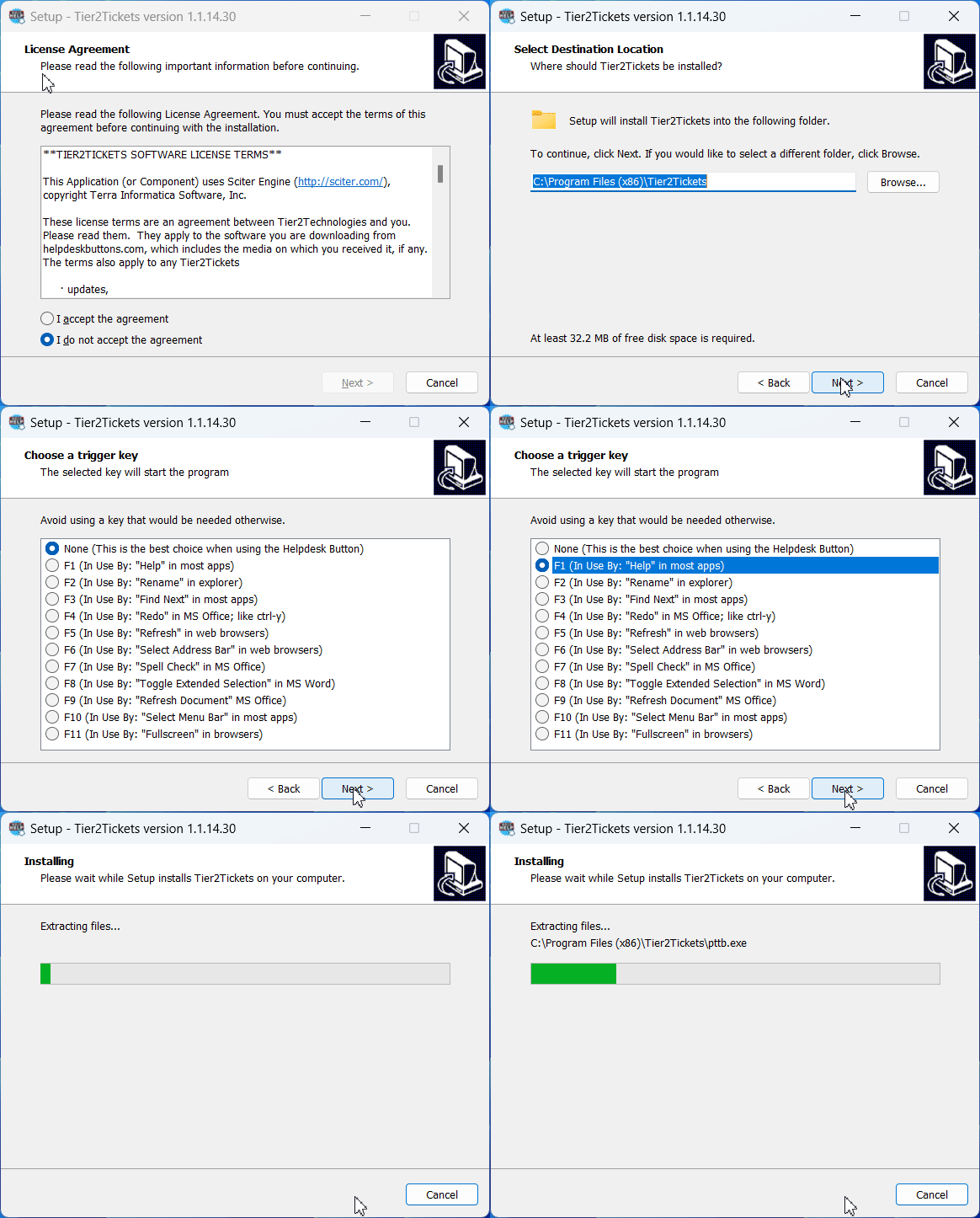
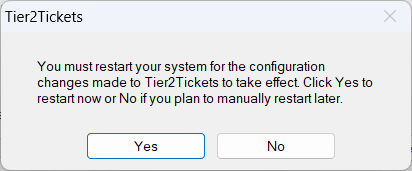
The installer will ask you to restart your computer. Select "Yes" to complete the installation.
## After Installation
Once installed, you can access the Help Button from:
* **Taskbar** - Look for the WRLD logo with "HELP"
* **Desktop** - Icon alongside other desktop icons
* **F1 Key** - Press F1 (if configured during install)
* **System Tray** - Right-click the tray icon
See our guide on submitting tickets with the Help Button
## Need Help?
If you encounter issues during installation, contact us at [helpdesk@wrld.tech](mailto:helpdesk@wrld.tech) or call **469.299.9598**.