> ## Documentation Index
> Fetch the complete documentation index at: https://help.wrld.tech/llms.txt
> Use this file to discover all available pages before exploring further.
# GoDaddy Delegated Access
> Grant WRLD access to manage your GoDaddy domains
## What is Delegated Access?
Delegated Access allows you to invite WRLD (or any web designer/developer) to access your GoDaddy products without sharing your password. Delegates can manage your domains and hosting but **cannot** view or change sensitive account information like payment methods or passwords.
## How to Invite WRLD as a Delegate
Visit your GoDaddy [Delegate Access](https://account.godaddy.com/access) page. You may be prompted to sign in.
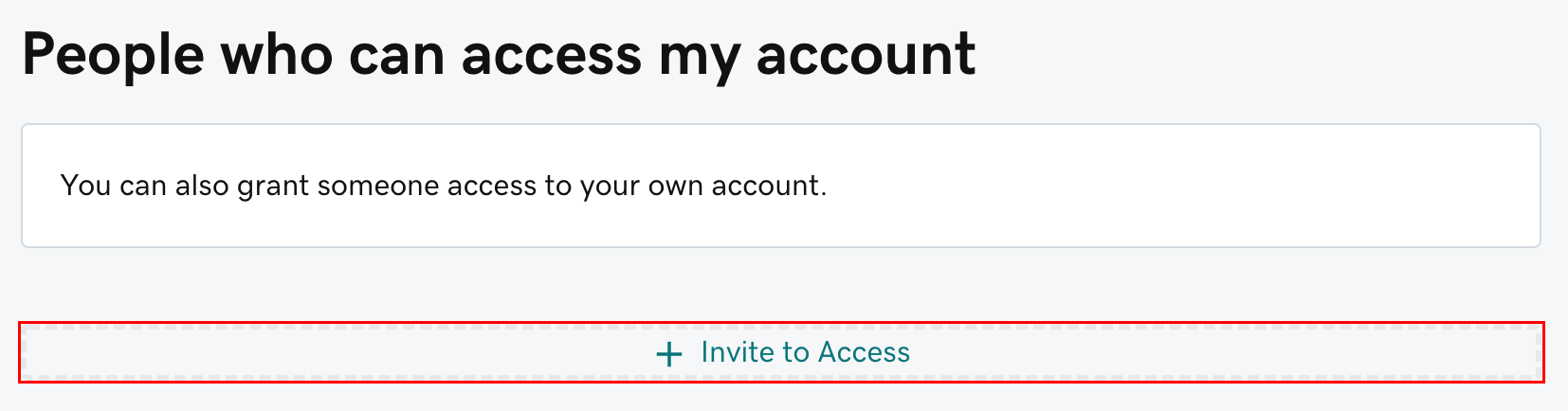
In the **People who can access my account** section, click **Invite to Access**.
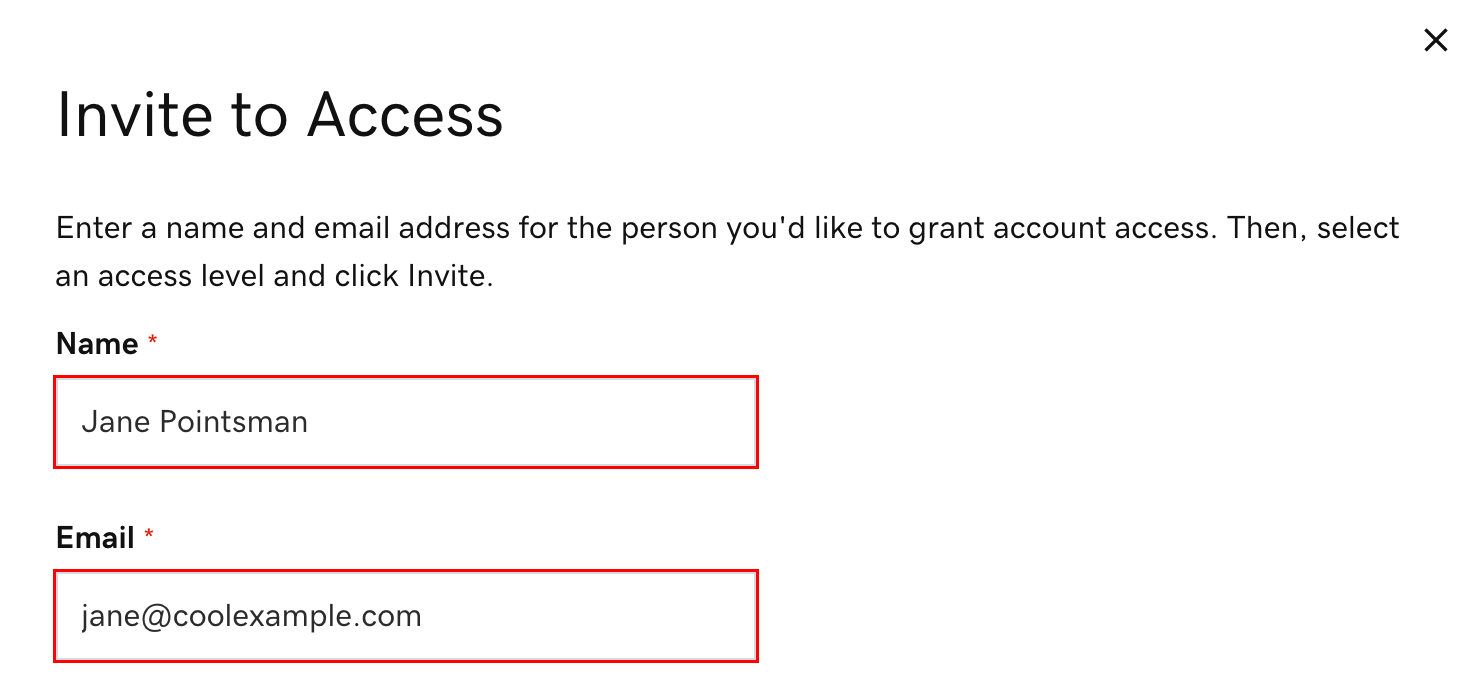
Enter the **Name** and **Email** for the person you're inviting.
For WRLD, use:
* **Name**: Ridge Lawrence (or WRLD Tech)
* **Email**: `ridge@wrld.tech`
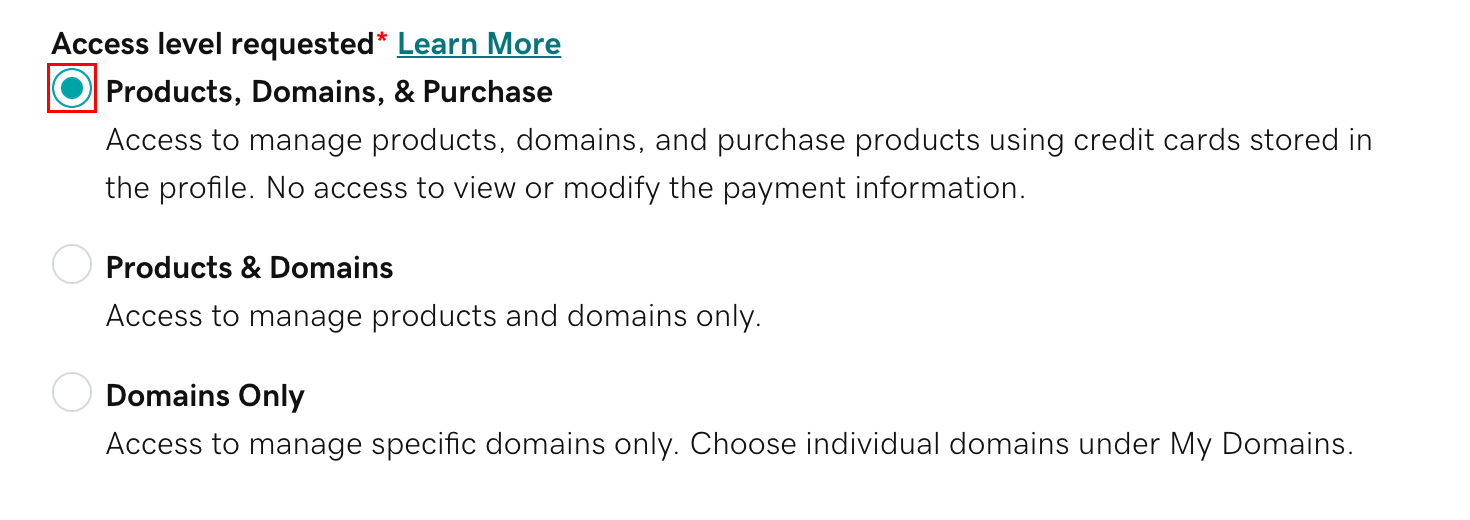
Choose the appropriate access level. For most domain management tasks, **Products, Domains & Purchase** is sufficient.
Not sure? See GoDaddy's [explanation of access levels](https://www.godaddy.com/help/delegate-access-levels-of-permission-12374).
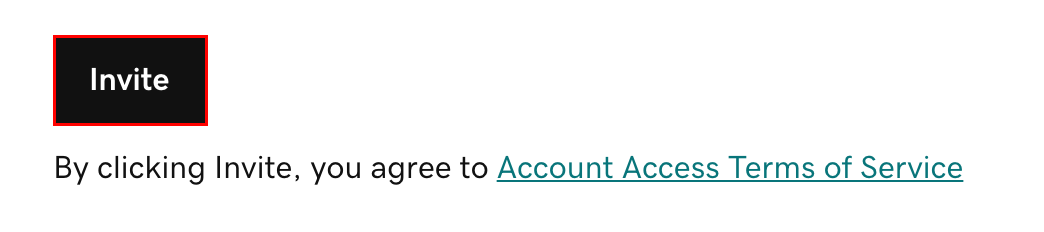
Click **Invite**. GoDaddy will send an email invitation. Once the delegate accepts, you'll be notified.
## Managing Delegates
### Cancel a Pending Invitation
Pending invitations expire after 48-72 hours if not accepted. To cancel early:
1. Go to [Delegate Access](https://account.godaddy.com/access)
2. Find the pending invitation
3. Click **Cancel**
### Change Access Level
Already granted access but need to adjust permissions?
* [Change a delegate's access level](https://www.godaddy.com/help/change-a-delegates-access-level-12377)
### Remove a Delegate
Need to revoke access?
* [Remove a delegate from your account](https://www.godaddy.com/help/remove-a-delegate-user-from-my-account-19326)
## Domain Folder Permissions
For more granular control over which domains a delegate can access:
* [Assign folder permissions for delegates](https://www.godaddy.com/help/assign-folder-permissions-for-delegates-32180)
## Considering a Transfer?
If you'd like to transfer your domain to WRLD.host for easier management and competitive pricing:
We price-match Namecheap! Link the domain in your order and we'll credit back the difference.
## Need Help?
Contact [helpdesk@wrld.tech](mailto:helpdesk@wrld.tech) or [submit a ticket](https://wrld.host/submitticket.php) if you need assistance with the delegation process.